
Hướng Dẫn Cài Đặt & Sử Dụng OneDrive Cho Người Mới: Dễ Dàng, Nhanh Chóng
Trong thời đại làm việc và học tập online như hiện nay, việc lưu trữ dữ liệu trên đám mây là điều không thể thiếu. OneDrive – dịch vụ lưu trữ đám mây miễn phí của Microsoft – chính là trợ thủ đắc lực giúp bạn đồng bộ, truy cập và chia sẻ dữ liệu mọi lúc, mọi nơi.
Nếu bạn là dân văn phòng hay sinh viên và đang bối rối không biết bắt đầu từ đâu, thì bài viết này sẽ hướng dẫn bạn cài đặt và sử dụng OneDrive một cách dễ hiểu, nhanh chóng và hiệu quả nhất!
1. OneDrive là gì?
OneDrive là dịch vụ lưu trữ đám mây do Microsoft phát triển, cho phép bạn lưu trữ tệp tin, hình ảnh, video, tài liệu… và truy cập chúng từ mọi thiết bị như máy tính, điện thoại hay tablet. Với tài khoản Microsoft (Outlook, Hotmail…), bạn đã có sẵn 5GB dung lượng miễn phí trên OneDrive.
2. Cách Cài Đặt OneDrive Trên Máy Tính
🔹 Bước 1: Kiểm tra hệ điều hành
- Windows 11: OneDrive đã được tích hợp sẵn. Bạn chỉ cần tìm “OneDrive” trong nút Start và khởi động.
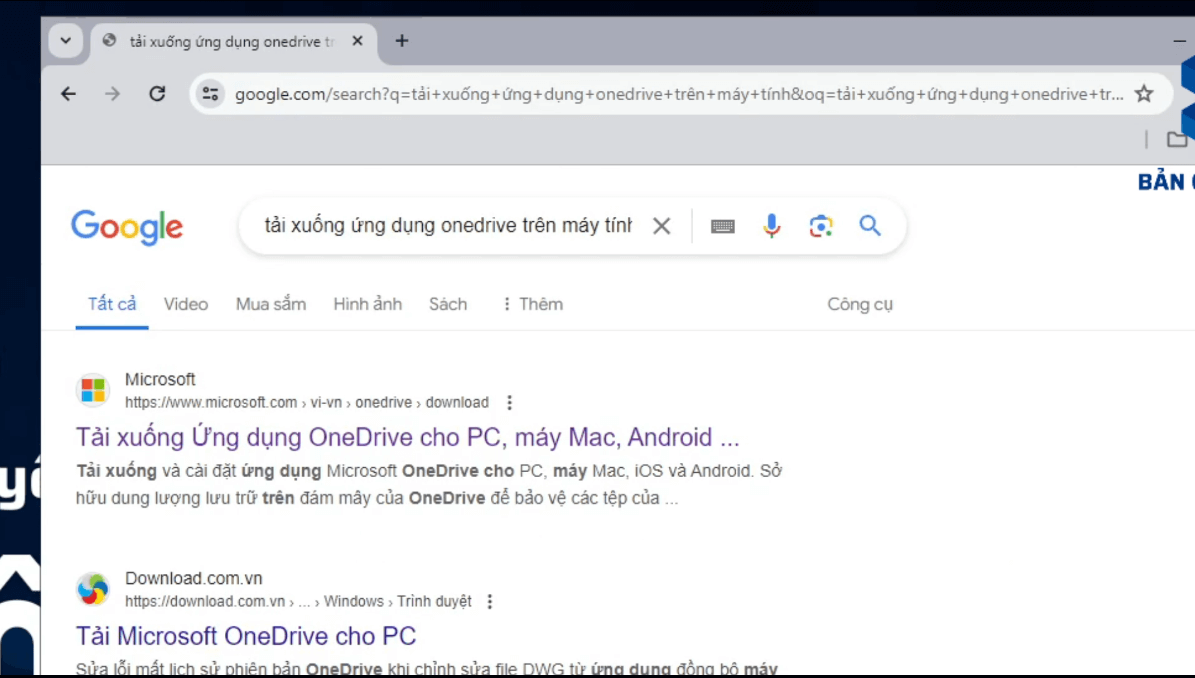
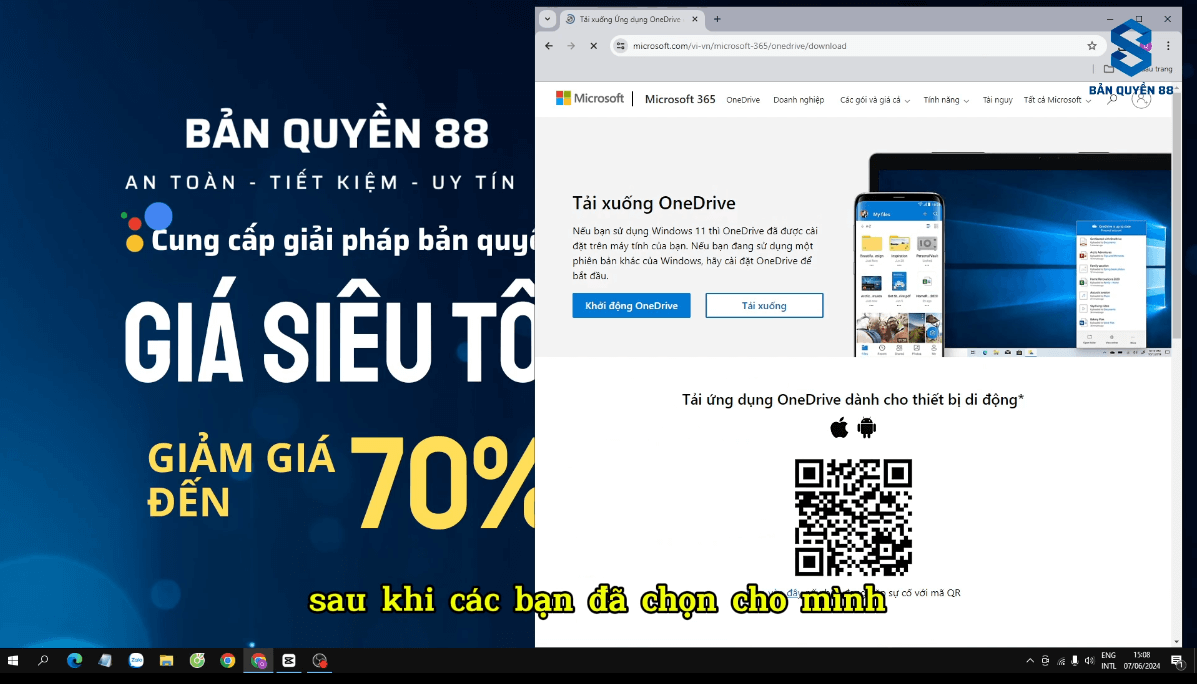
- Windows 10 trở xuống: Truy cập Google và tìm từ khóa “Tải xuống OneDrive cho PC”. Chọn link chính thức từ Microsoft và tải file cài đặt về.
🔹 Bước 2: Cài đặt
- Sau khi tải về, mở file và tiến hành cài đặt như phần mềm thông thường.
- Sau khi cài xong, tìm kiếm “OneDrive” trong Start Menu và mở ứng dụng.
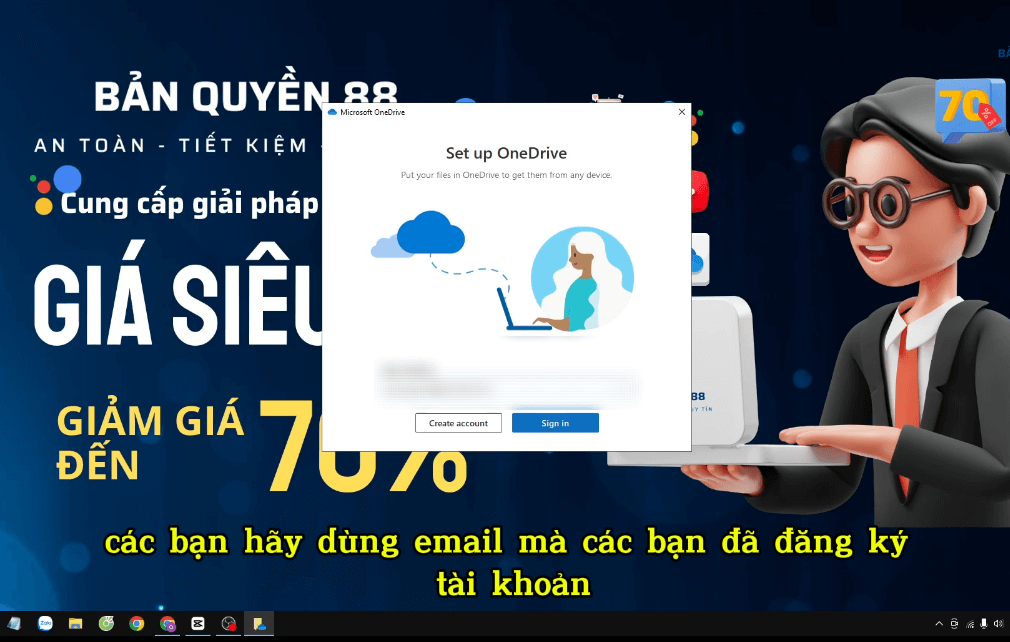
3. Cách Đăng Nhập và Thiết Lập
- Đăng nhập bằng tài khoản Microsoft cá nhân hoặc cơ quan.
- Xác thực đăng nhập bằng ứng dụng Microsoft Authenticator (nếu được yêu cầu).
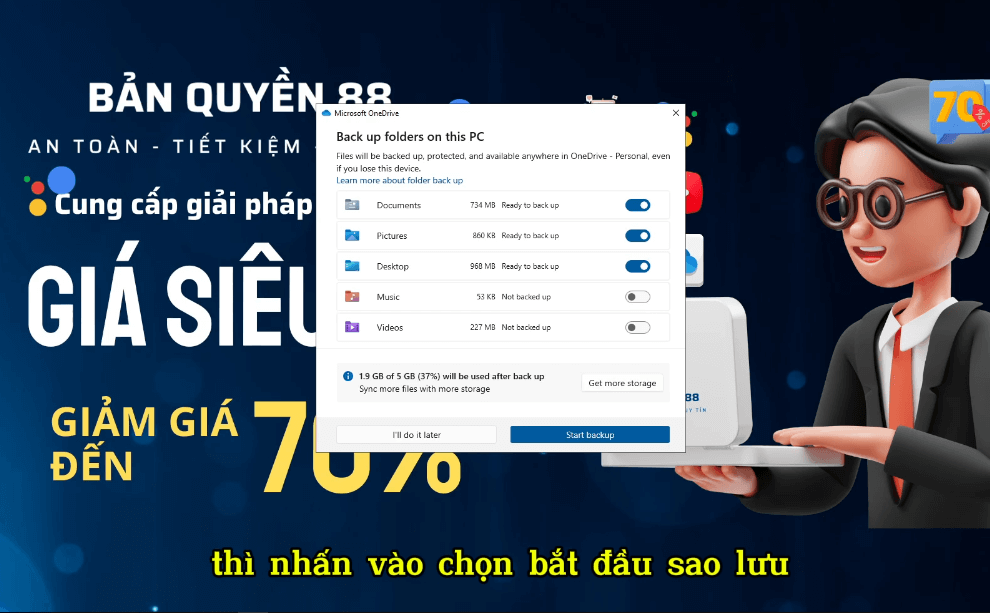
- Làm theo hướng dẫn trên màn hình: Nhấn Next, chọn các tùy chọn đồng bộ hoặc bỏ qua nếu bạn chưa cần sử dụng.
💡 Mẹo nhỏ: Nếu bạn có nhiều tài liệu quan trọng trong thư mục “Documents” hoặc “Desktop”, hãy chọn sao lưu lên OneDrive để đảm bảo dữ liệu luôn an toàn.
4. Sử Dụng OneDrive Trên Máy Tính
Sau khi cài đặt xong, bạn sẽ thấy thư mục OneDrive trong File Explorer (My Computer).
Bạn có thể:
Bạn có thể:
- Copy, kéo thả file vào thư mục này để tự động đồng bộ lên cloud
- Xóa file ở đây thì file trên web cũng biến mất (và ngược lại)
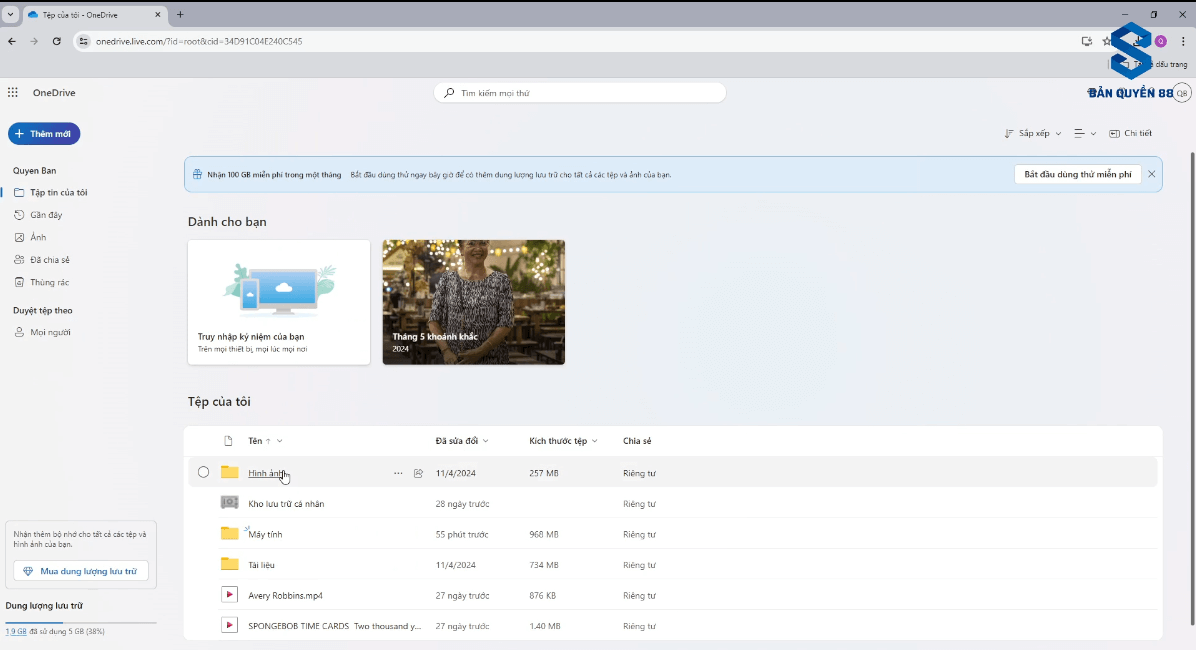
- Truy cập dữ liệu tại onedrive.live.com từ bất kỳ trình duyệt nào
5. Đồng Bộ Giữa Máy Tính & Website
Mọi thao tác bạn thực hiện trong thư mục OneDrive trên máy tính sẽ được tự động đồng bộ với tài khoản OneDrive online. Tính năng này rất tiện lợi cho việc:
- Làm việc nhóm
- Lưu trữ bài tập
- Sao lưu tài liệu quan trọng
Kết Luận
Việc sử dụng OneDrive không hề phức tạp, chỉ cần vài bước đơn giản là bạn đã có thể lưu trữ và đồng bộ dữ liệu một cách thông minh và bảo mật.
🔔 Nếu bạn là người mới sử dụng máy tính, sinh viên hay dân văn phòng, thì đây chính là giải pháp lưu trữ lý tưởng, tiết kiệm thời gian và hiệu quả cao.



 Windows
 Windows Server
 Phần mềm Office
 Lưu trữ
 Giải trí
 Học tập
 Thiết kế
 Tiện ích
 Visual Studio


All about the Aviator game�adult-only reminder. Use our Aviator game download steps, learn bankroll rules, and play responsibly.
Read fairness briefs for the Aviator game and keep a record of your Aviator game download.
Keep support routes handy for the Aviator game and save them with the Aviator game download.
App security audits summarized within this 1win apk review.
Fantastic read! 👏 I really appreciate how clearly you explained the topic—your writing not only shows expertise but also makes the subject approachable for a wide audience. It’s rare to come across content that feels both insightful and practical at the same time. At explodingbrands.de we run a growing directory site in Germany that features businesses from many different categories. That’s why I truly value articles like yours, because they highlight how knowledge and visibility can create stronger connections between people, services, and opportunities.Keep up the great work—I’ll definitely be checking back for more of your insights! 🚀
Thank you for sharing such a well-structured and easy-to-digest post. It’s not always easy to find content that strikes the right balance between informative and engaging, but this piece really delivered. I appreciated how each section built on the last without overwhelming the reader. Even though I’ve come across similar topics before, the way you presented the information here made it more approachable. I’ll definitely be returning to this as a reference point. It’s the kind of post that’s genuinely helpful no matter your level of experience with the subject. Looking forward to reading more of your work—keep it up! profis-vor-ort.de
I do not even understand how I ended up here, but I assumed this publish used to be great
naturally like your web site however you need to take a look at the spelling on several of your posts. A number of them are rife with spelling problems and I find it very bothersome to tell the truth on the other hand I will surely come again again.